![wsm-logo (1).png]](https://help.webshopmanager.com/hs-fs/hubfs/wsm-logo%20(1).png?height=40&name=wsm-logo%20(1).png)
Your store admin opens with a Web Shop Manager ID: your email address, then your password or an emailed code, then a second step. This guide shows every screen, in order, so you can get in even when our team is not available.
Which way should I use?
| If this is you | Go to |
|---|---|
| This is my first time, or I never set a password | First sign-in: set your password |
| I forgot my password | Forgot password |
| I would rather not type a password | Sign in with an emailed code |
| The screen says "Add a second factor" | Set up your second step |
| The screen says "Check your email" and mentions a new device | The new-device email check |
| The screen says "Your account is locked" | Locked out |
| The code email never arrived | Code email not arriving |
First sign-in: set your password
- Open your store admin (your store address followed by
/admin). You see the green SIGN IN WITH WEB SHOP MANAGER ID button. Under it, click Set your password.
On a phone it looks like this:

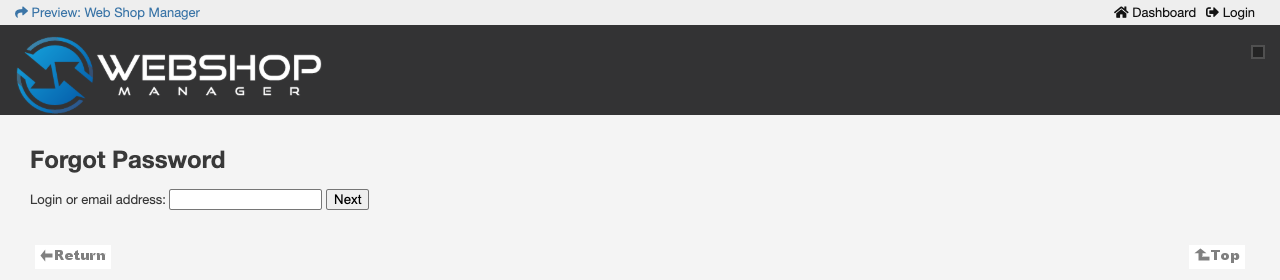
- In Login or email address: type the email address of your admin account, then press Next.
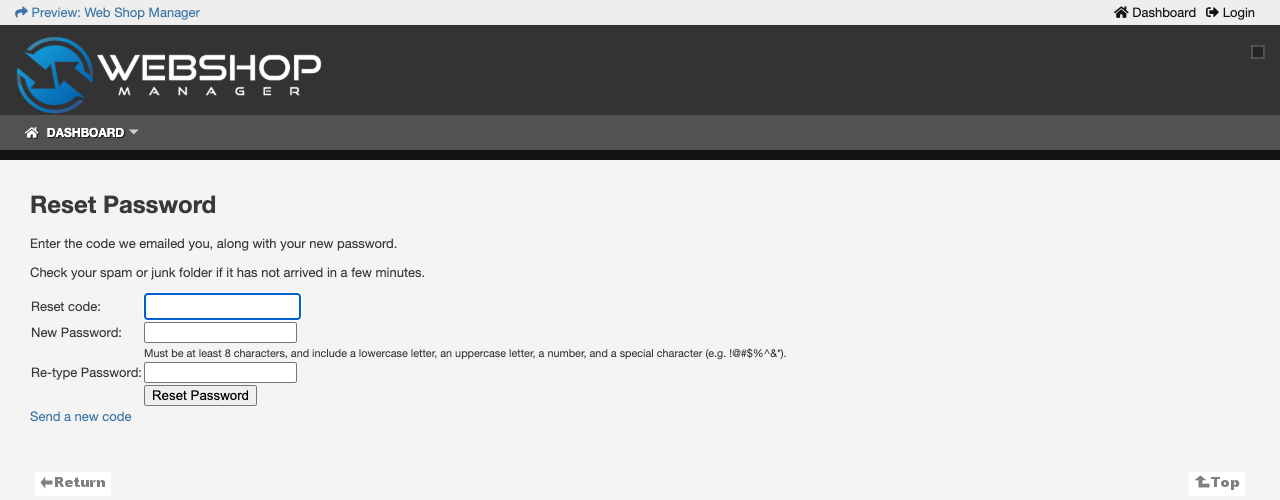
- The Reset Password page opens and we email you a code. Type the code in Reset code:. Type a new password in New Password: and again in Re-type Password:, then press Reset Password. Your password needs at least 8 characters with an uppercase letter, a lowercase letter, a number and a symbol such as !. If the email has not arrived after a few minutes, check your spam or junk folder, or click Send a new code.
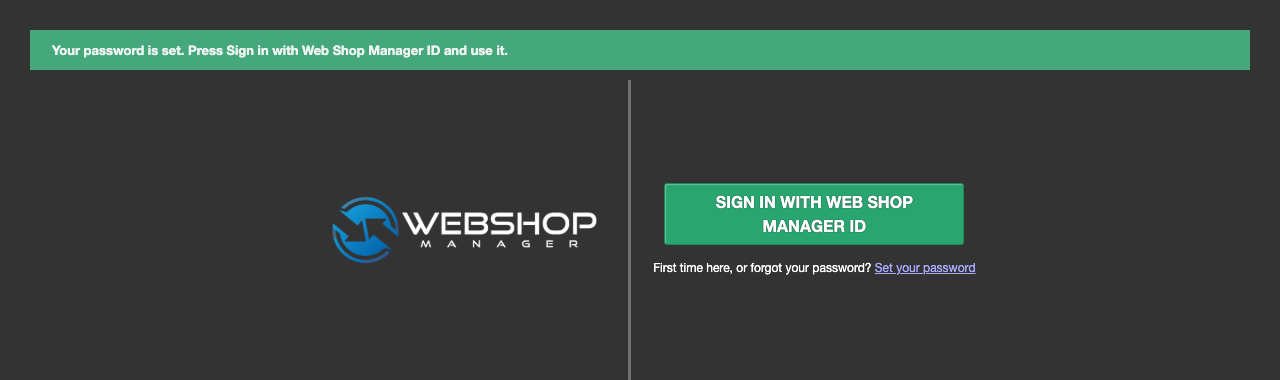
- You see "Your password is set. Press Sign in with Web Shop Manager ID and use it." Press the green SIGN IN WITH WEB SHOP MANAGER ID button.
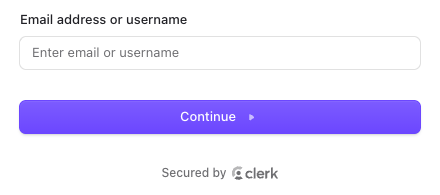
- Type your email address in Email address or username and press Continue.
- On Enter your password, type the password you just set and press Continue.
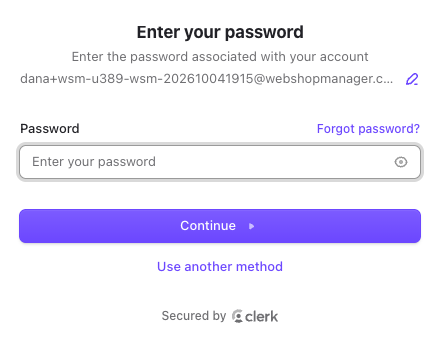
- If this computer or browser is new to us, you get the new-device email check next. If you have no second step yet, you see Add a second factor: follow Set up your second step.
- Once both steps are done, your store admin opens.

Forgot password
There are two ways. Both end with a new password.
Way 1, from the sign-in page: click Set your password under the green button and follow steps 1 to 4 of First sign-in.
Way 2, from the sign-in screens:
- Press the green SIGN IN WITH WEB SHOP MANAGER ID button, type your email address and press Continue.
- On Enter your password, click Forgot password? (above the password box).
- On Forgot Password?, press Reset your password.
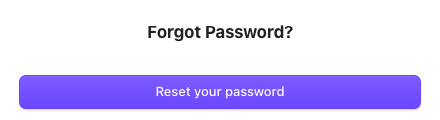
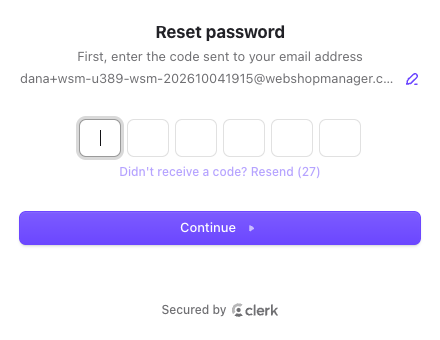
- On Reset password, type the code we emailed you. If the screen does not move on by itself, press Continue.
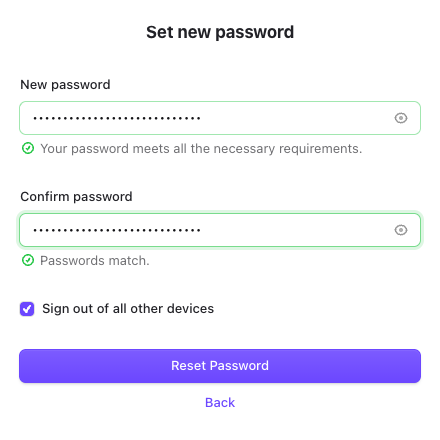
- On Set new password, type your new password in New password and again in Confirm password, then press Reset Password. Use at least 8 characters with an uppercase letter, a lowercase letter, a number and a symbol such as !.
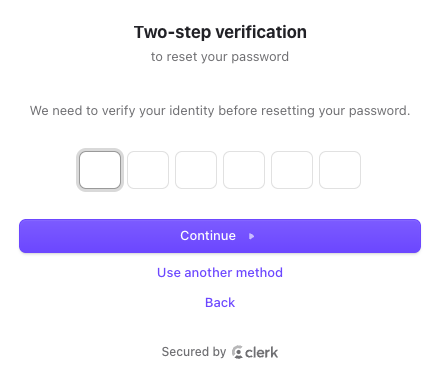
- Clerk asks for your second step before it saves the new password ("We need to verify your identity before resetting your password."). Type the code and press Continue. Your store admin opens.
Sign in with an emailed code
You can skip the password and use a code we email you instead.
- Press the green SIGN IN WITH WEB SHOP MANAGER ID button, type your email address and press Continue.
- On Enter your password, click Use another method.
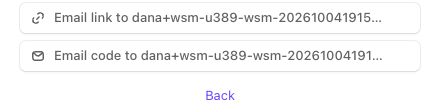
- Press Email code to followed by your address.
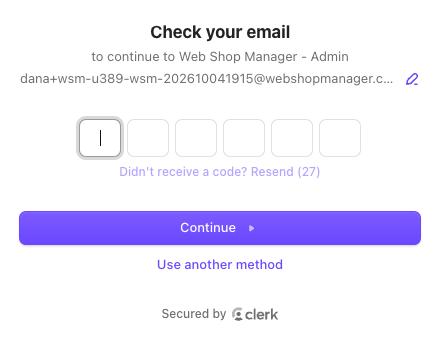
- On Check your email, type the 6-digit code from the email. If the screen does not move on by itself, press Continue.
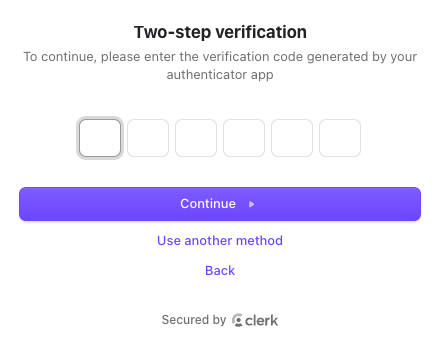
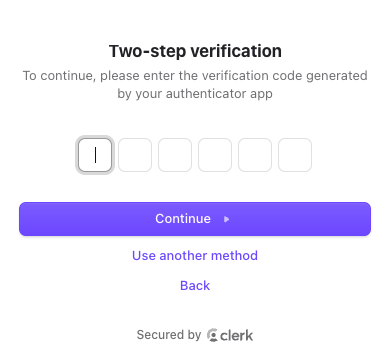
- Finish with your second step: on Two-step verification type the code and press Continue. Your store admin opens.
On a phone:
Set up your second step
The second step proves it is really you, even if someone learns your password. You choose one: a passkey, an authenticator app, or a text message code.
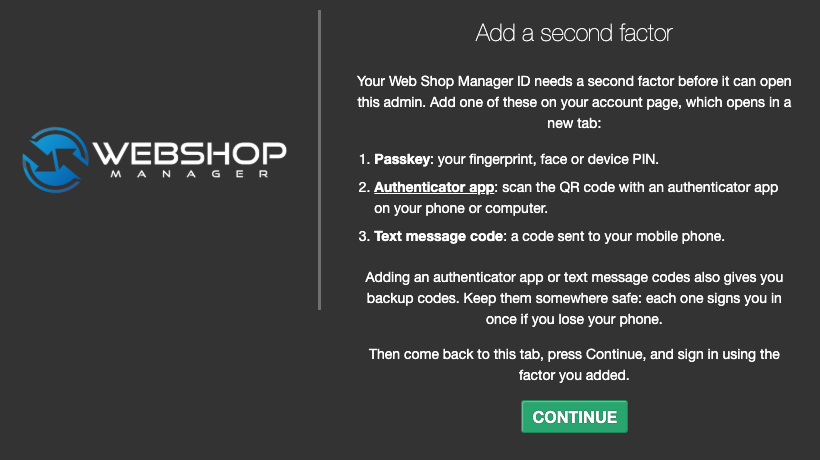
- After your password, the Add a second factor page lists the three choices. Click the one you want. Your account page opens in a new tab. If that tab asks you to sign in, sign in there the same way.
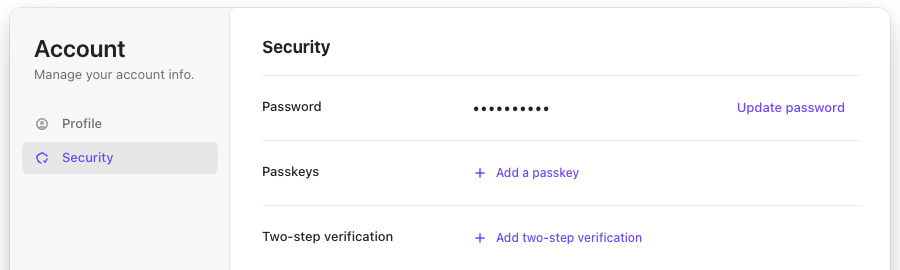
- The account page opens on Security, showing Password, Passkeys and Two-step verification.
Authenticator app
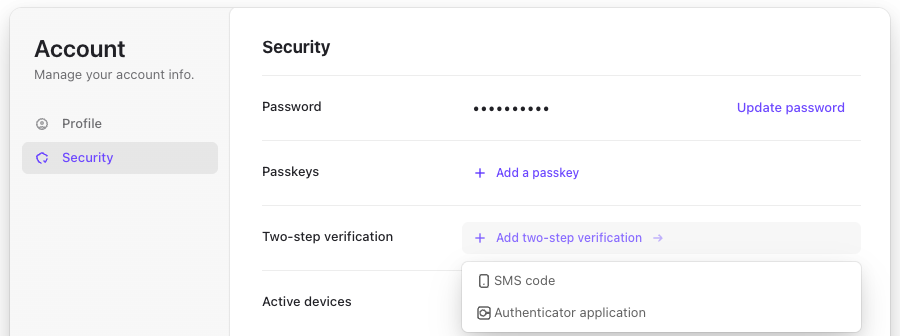
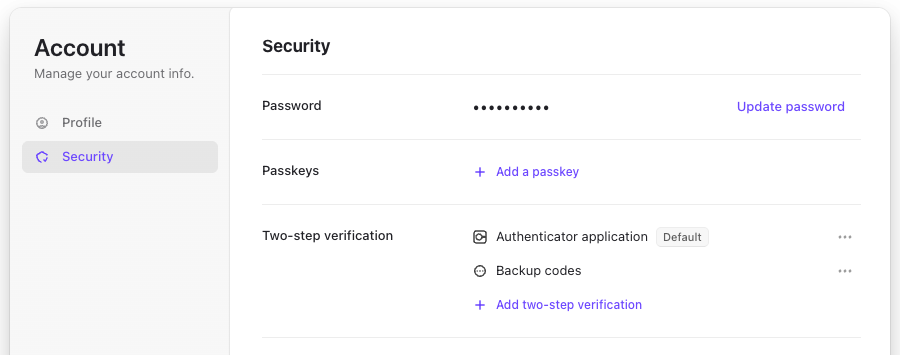
- Press Add two-step verification, then choose Authenticator application.
- Open the authenticator app on your phone or computer, add a new account, and scan the QR code. If you cannot scan it, click Can’t scan QR code?. Then press Continue.
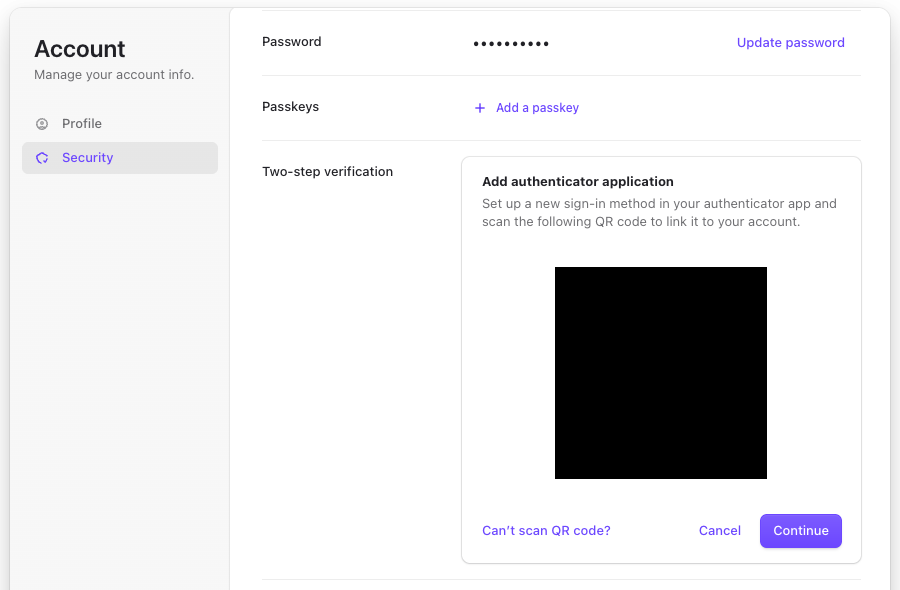
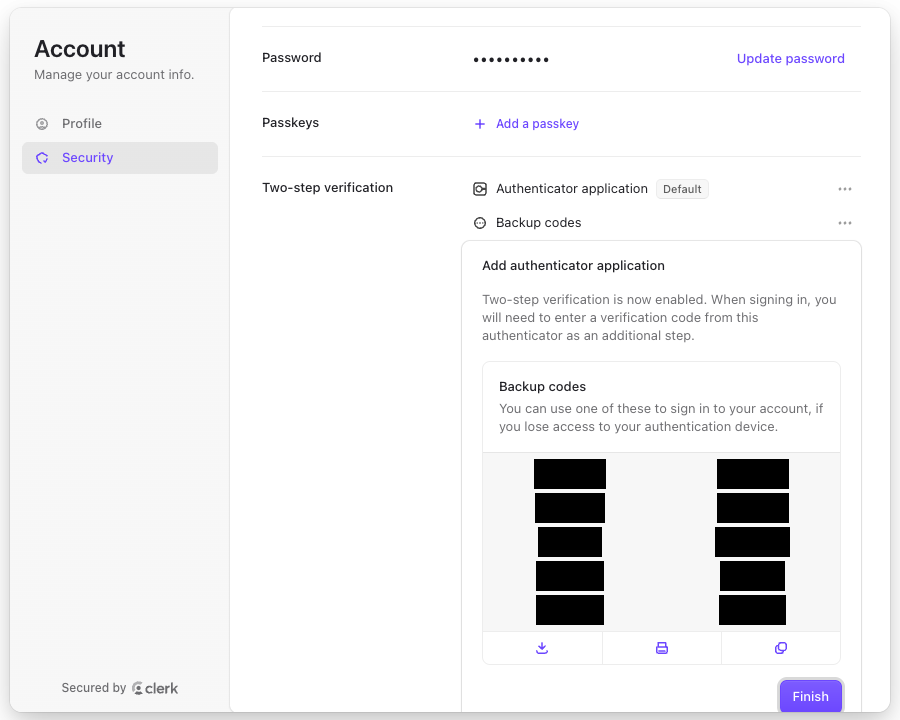
- Type the 6-digit code your app shows. You then see "Two-step verification is now enabled." and a list of Backup codes. Save them somewhere safe: each one signs you in once if you lose your phone. Press Finish.
- The Security section now shows Authenticator application and Backup codes.
Text message code
- Press Add two-step verification, then choose SMS code.
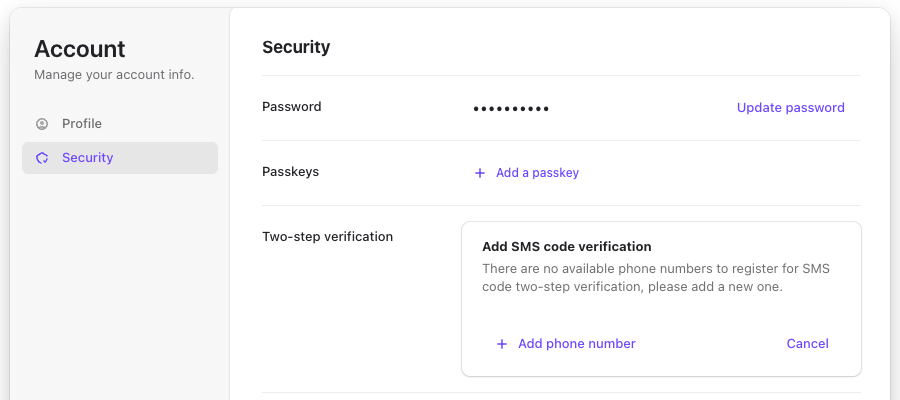
- If your account has no phone yet you see Add SMS code verification. Press Add phone number, type your mobile number, and type the code we text you. You also get backup codes: save them and press Finish.
Passkey
- On the Security section, press Add a passkey.
- Your browser or device asks you to confirm with your fingerprint, face or device PIN. Confirm it. A passkey counts as both steps, so next time it signs you in on its own.
When the new factor is added, go back to the first tab, press CONTINUE, and sign in using the factor you added.
The new-device email check
- The first time you sign in on a new computer or browser you may see Check your email with "You're signing in from a new device. We're asking for verification to keep your account secure." This is normal.
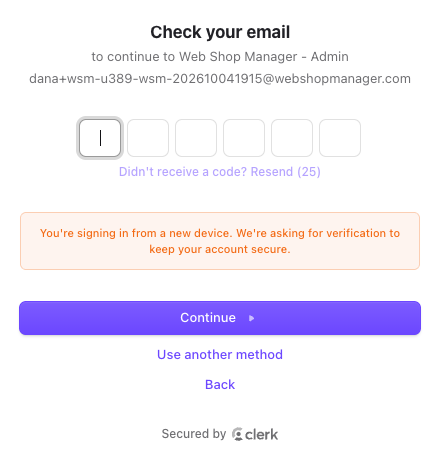
On a phone:
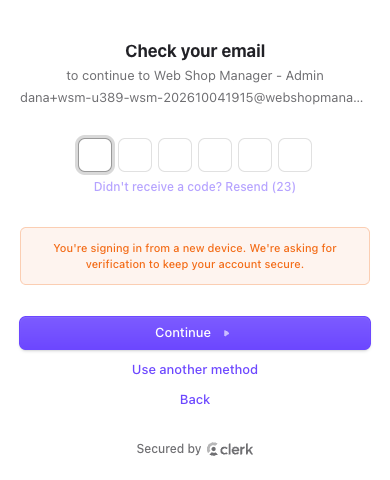
- Open the email with the subject "123456 is your verification code" (your own 6 digits). Type the code. If the screen does not move on by itself, press Continue.
Locked out
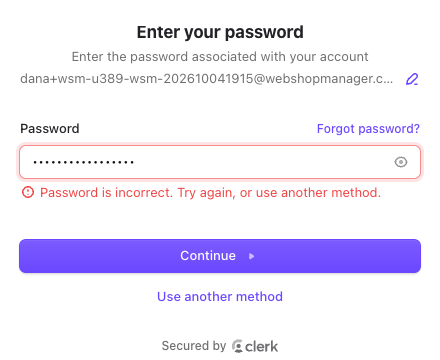
- A wrong password shows "Password is incorrect. Try again, or use another method." Before you run out of tries, the screen warns you ("There are only 2 remaining attempts."). If you are not sure of your password, stop and use Forgot password or an emailed code instead.
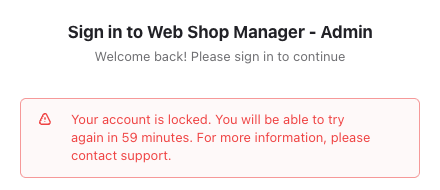
- One wrong password too many locks your Web Shop Manager ID for 60 minutes: "Your account is locked. You will be able to try again in 59 minutes." While it is locked, nothing gets you in: the emailed code, Forgot password? and Set your password all have to wait. Wait 60 minutes, then sign in again.
Code email not arriving
- Codes arrive within a minute or two from "Web Shop Manager - Admin". Sign-in codes come from notifications@webshopmanager.com with the subject "123456 is your verification code". Password codes come from noreply@webshopmanager.com with the subject "123456 is your reset password code".
- Check your spam or junk folder. Add both addresses to your contacts or safe senders so the next one lands in your inbox.
- Still nothing? Press Didn't receive a code? Resend on the code screen, or Send a new code on the Reset Password page, and use the code from the newest email.
Still stuck?
Contact us and tell us which screen you are on. Related: LOGGING IN.