![wsm-logo (1).png]](https://help.webshopmanager.com/hs-fs/hubfs/wsm-logo%20(1).png?height=40&name=wsm-logo%20(1).png)
Signing in changed in 2026. For the current steps, with screenshots, see Sign-in help for your store admin.
Skip ahead to- Creating a New User
- Editing or Deactivating a User
- Troubleshooting
- Permission Levels
Creating a New User
🔎Note: Only account "Owners" are allowed to create new users. No other account type can create new users.
Log into the back end of your WSM account and follow these steps:
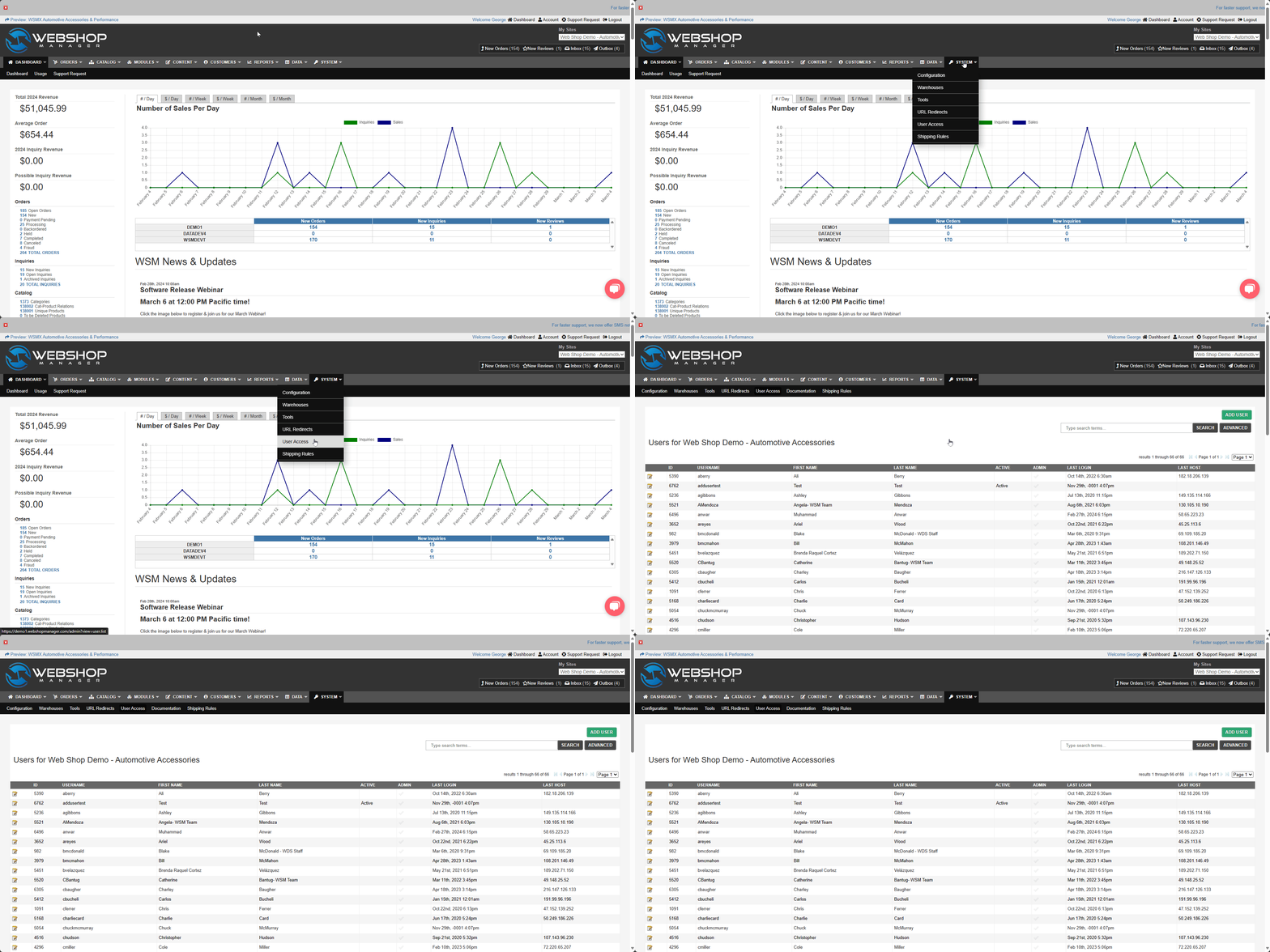
Step 1: Hover your mouse over the Systems tab and click on User Access.
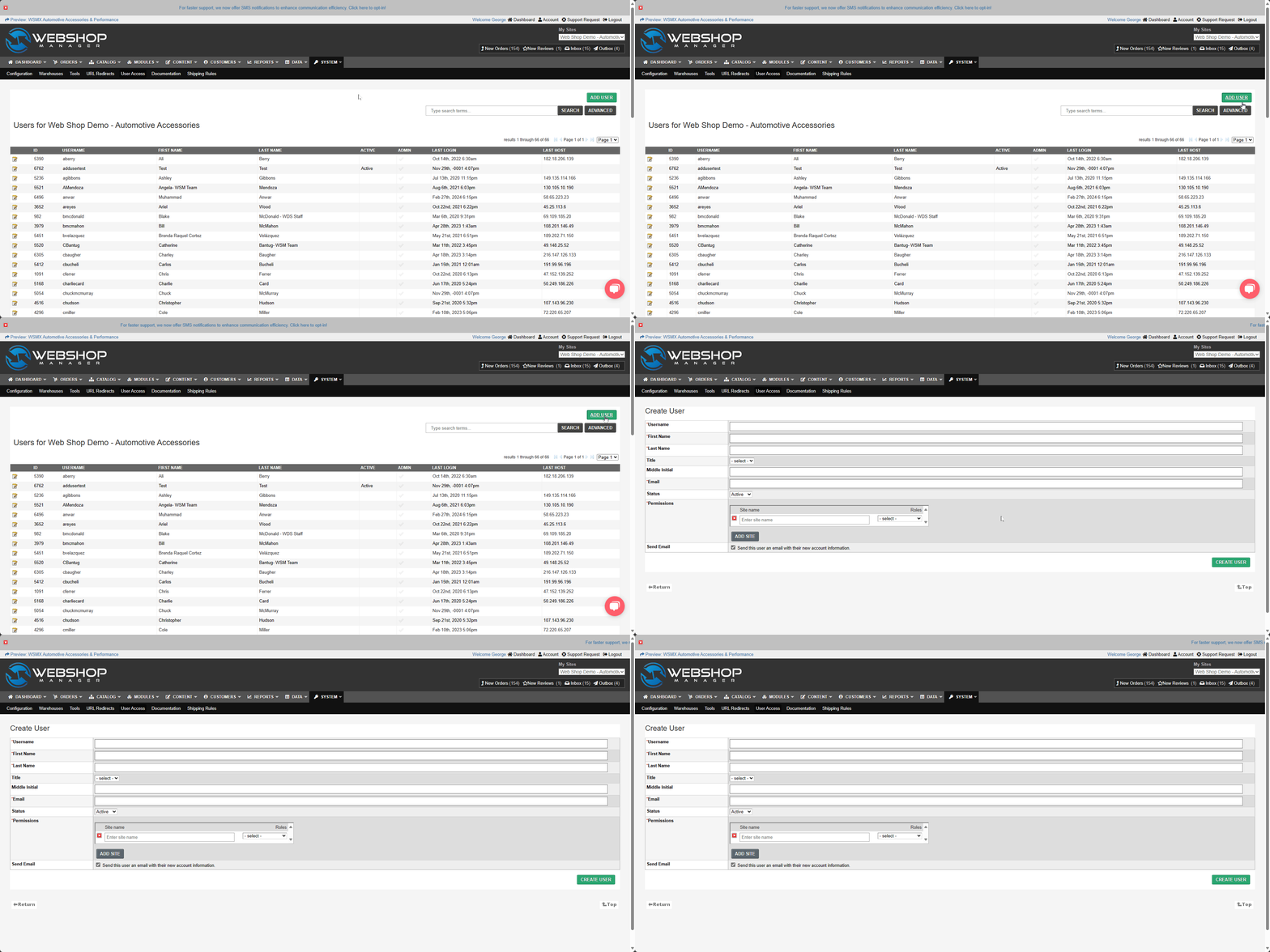
Step 2: On the right-hand side of the screen, click the green Add User button.
Step 3: Enter the new user's name and email address in the form fields provided.
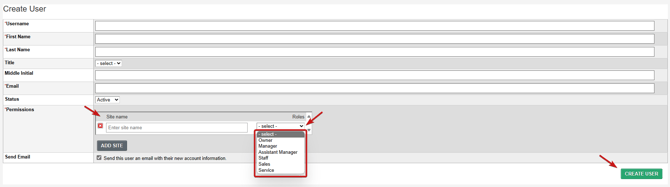
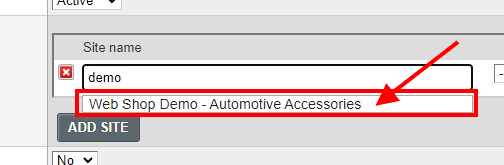
Step 4: Type the name of the site and select it from the suggested matches as you type. Then assign the specific role required for that site.
- If you own multiple websites, click Add Site to grant the user access to additional sites, then type the website name and specify the user's permission level for each one.
- If no site name field is available to enter, click Add Site to create a new field.
Step 5: Click Create User to complete the form.
Once you're finished, how the new user signs in depends on your store's sign-in page:
- Green SIGN IN WITH WEB SHOP MANAGER ID button: you see "User saved. Their Web Shop Manager ID invitation arrives by email within five minutes." The new user then opens (yourdomain)/admin, clicks Set your password under the green button, and follows First sign-in. If their address already has a Web Shop Manager ID, the message says it is linked to this user within five minutes instead.
- Username and Password boxes: the new user receives an email titled "Welcome to Web Shop Manager" with their username and password, and signs in with them at (yourdomain)/admin. You receive a "New user confirmation" email too. They can change the password afterwards under Account, Change Password. If the welcome email does not arrive, they can set a password by clicking forgot password on the sign-in page, entering their email address in Login or email address:, pressing Next, and following the email.
Editing or Deactivating a User
To change a user's permission level or site access:
- Hover over Systems and click User Access.
- Find the user in the list and click their name to open their account details.
- Update their permission level or site assignments, then save.
To deactivate or remove a user's access:
- From the same User Access screen, open the user's account details.
- Select the option to deactivate the account (this revokes their login without deleting their order/activity history).
Troubleshooting
New user didn't receive their login email:
- On a store with the green button, the new user can still get in: five minutes after you save, they click Set your password under the green button and use the code we email them.
- Confirm the email address was entered correctly when the account was created.
- Ask them to check spam/junk folders.
- If it still hasn't arrived after 15 minutes, submit a ticket and we can resend it or verify the account was created correctly.
Can't find the "Add User" button:
- Only Owner accounts can create users. Confirm you're logged in as an Owner-level account.
Permission Levels:
| Owner | Complete access to the back end of the site and can manage user accounts |
| Manager |
Access to all settings except creating or managing user access |
| Assistant Manager |
Access to all settings except:
|
| Staff | Access to Orders, Content, Modules, Customers, Reports and Catalog menus |
| Sales |
Access to Orders, Customers, and Reports menus |
| Service | Access to submitted Inquiries on the Customer Menu |